
What is Iris in Submagic and how does it edit your videos?
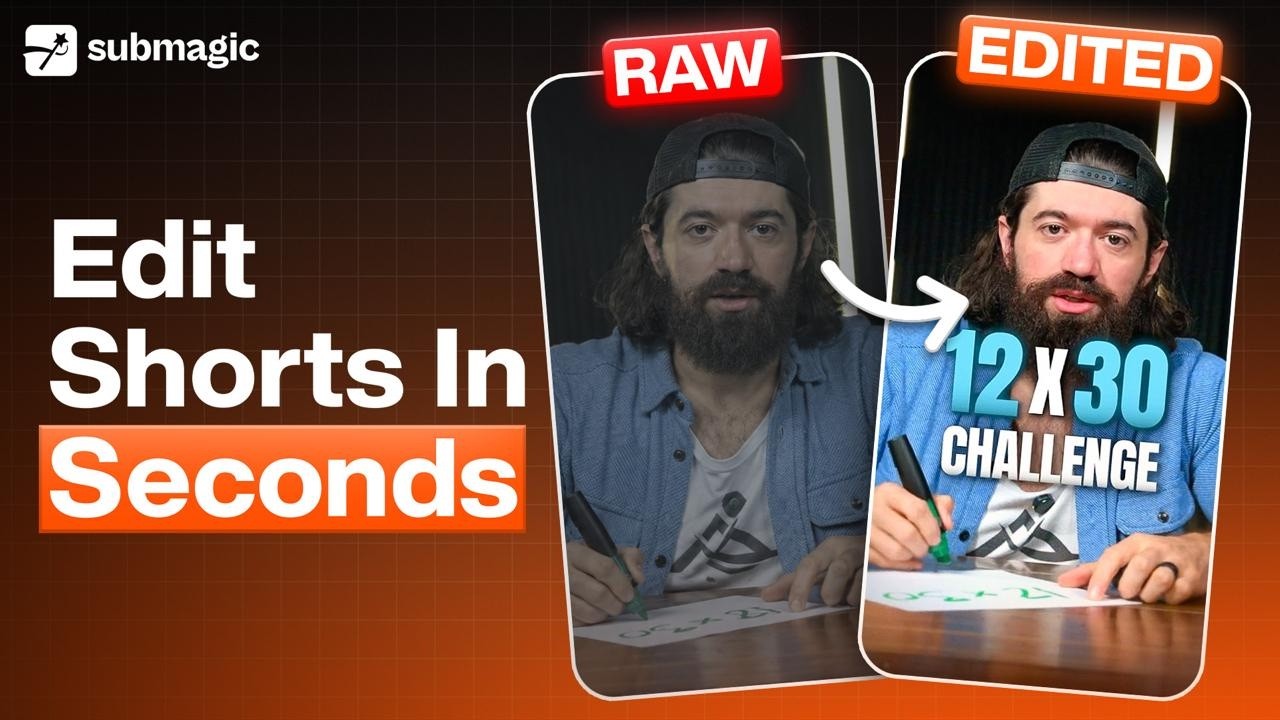
Iris is an AI editing agent inside Submagic. You upload raw footage and pick a style, and Iris returns a finished short video. It cuts the footage, adds captions, zooms, b-roll, music and motion graphics in one pass. You then ask Iris for changes in a chat, in plain language, until the video is right.
Watch Iris in action
Watch this first for the quick version: picking a style, uploading footage, and the edit Iris produces. The rest of this article covers each step in detail.
What is Iris?
Iris is an AI agent that edits a whole video for you. You do not cut, caption or add graphics by hand.
You give Iris two things: your raw footage and a style. The style is a template, which is a real short-form video whose editing Iris copies onto your footage.
Iris then edits the video from start to finish. When it is done, you talk to it in the Chat tab and ask for changes. Iris applies each change and tells you what it did.
You can also edit anything by hand in the editor, so you are never stuck with a choice Iris made.
What Iris does to your video
Iris makes all of these edits in a single pass:
- Cuts the silences and retakes. Pauses, repeated lines and slip-ups come out, so you can upload an uncut take.
- Adds captions. Word by word, in the font, size and colour of the style you picked.
- Zooms and reframes. The shot is cropped and zoomed for vertical video. You can keep your original framing instead.
- Adds b-roll. Supporting clips are placed where they match what you are saying.
- Adds motion graphics. Cards, pills, headers and stat labels appear on the points you make.
- Adds music. A track that suits the style, with the volume balanced against your voice.
- Adds sound effects. Short effects on cuts and graphics, in the style's own pattern.
- Fixes eye contact. Optional. Your eyes are corrected to look at the camera. Costs 3 extra credits.
- Cleans the audio. Optional. Background noise is removed and your voice is kept. Costs 2 extra credits.
Note: b-roll, music and pause cutting are toggles you set before upload. Iris only applies what is switched on.
How to edit a video with Iris
Step 1. Open Iris
On your Submagic home page, under Create a Project, click Iris · AI editing agent.

Step 2. Pick a style
Browse the gallery and hover over a template to preview it. Click Use on the one you want.

Step 3. Set your editing options
On the upload screen, turn on what you want Iris to do: Cut pauses and retakes, B-roll and Music. Pick a Brand Kit if you have one. These settings are saved for your next video.
Step 4. Add your Video
Drag a file into the box, click click to select, or use Import from my phone or Import from Google Drive.

Step 5. Wait for the edit
Iris cuts, captions and builds your video. When it is done, the editor opens with your video on the left and five tabs on the right.
Step 6. Review and fix
Ask Iris for changes in the Chat tab, or edit by hand in the other four tabs. Both are covered below.
Step 7. Export or publish
Click Export to download the file. Click Publish to post it straight to a connected social account.
Warning: each edit costs 8 credits, taken when the edit starts.
How to pick a style
A style is a template. Iris studies its editing and applies the same captions, cards, cuts and camera moves to your footage.
The gallery holds 37 templates, grouped into four categories:
Category | Templates |
|---|---|
Talking head (19) | Paprika, Roberto, Hush, Nocturne, Claude, Matinee, Celluloid, Halo, Diorama, Keepsake, Serif, Siesta, Scarlet, Margin, Deed |
Podcast & interview (10) | Card, Stack, Claret, Glide, Fringe, Ember, Aspect |
Product & demo (4) | Ranking, Datapoint, Sketchpad, Mint |
Places & tours (4) | Pane, Postcard, Groundwork, Estate |
Build your own style from a reel
If you like how a video is edited, Iris can copy that style.
- Click Create from a reel in the gallery.
- Paste the link in Reel link. Instagram Reels and YouTube Shorts both work.
- Give it a name, so you can find it later.
- Click Create template. It costs 4 credits.

Iris then watches the reel frame by frame and works out how it is edited. This takes about two minutes, and you can leave the page while it runs.

Your saved styles appear under My templates.
Note: reels must be between 10 seconds and 3 minutes.
Tip: click Change on the upload screen to swap the style before you upload.
How to ask Iris for changes
Open the Chat tab and type what you want changed. Write it the way you would say it to an editor.
These all work:
- "Make all the on-screen text English."
- "Remove the music and keep the sound effects."
- "Move the captions higher so they clear the subtitles."
- "Cut the first 8 seconds, I stumble at the start."
Send your message and Iris starts working. A timer shows how long it has been going, and Stop cancels it.

When Iris is done, it writes back what it changed and what it left alone. It also saves a new version, so you can undo it.
Iris sometimes spots a problem on its own and offers a fix. In this example it heard background noise and offered Clean Audio for 2 credits and Eye Contact for 3 credits. Switch on the ones you want.

Tip: ask for several changes in one message. Each message counts towards your 20.
Note: Iris changes on-screen text when you ask for another language. It does not re-record the voice.
How to edit Manually
Four tabs let you change things yourself, without spending a chat message.
Captions
Open the Captions tab to see every word with its timestamp.
- Click a word to fix a spelling mistake
- Click a word to cut it from the video. It shows struck out
- Click a struck-out word to put it back
- Drag across several words to cut them together

Note: cutting a word cuts that moment of video too, not just the caption.
Elements
Open the Elements tab to manage everything Iris placed on your video.
- Music: add a track, swap it, or remove it
- B-Roll: see each clip, change it, or move when it appears
- Graphics: every card and label, each with its own timing. Click Change its text to reword one

Style
Open the Style tab to change how your captions look.
- Position: slide the captions higher or lower
- Size: make them bigger or smaller
- Case: switch between Aa, AA and aa
- Colours: set the main colour, the text colour and the card colours
- Fonts: pick a font, or upload your own

Editing Style
Open the Editing Style tab to change how Iris edits, rather than how it looks.
- Remove pauses and retakes: turn the cutting on or off
- Keep original framing: keep your video whole, with no zoom or crop
- Fix eye contact: make the speaker look at the camera. Costs 3 credits
- Clean audio: take out background noise and keep the voice. Costs 2 credits
- What Iris remembers: add a line here, and Iris applies it to your future edits

Tip: use What Iris remembers for anything you fix on every video, such as how you spell your brand name.
What Iris costs
Iris runs on Submagic credits. Your balance sits in the top right corner of every page.
What you do | Credits |
|---|---|
Edit a video with Iris | 8 |
First 20 chat messages on that edit | Included |
Each 20 chat messages after that | 8 |
Build a template from a reel | 4 |
Fix eye contact | 3 |
Clean audio | 2 |
Who can use Iris
Iris is available on every Submagic plan, including the free plan. You need credits in your account to run an edit.
Limits
- Video length: 3 minutes. Longer footage is not accepted.
- Reel length for templates: 10 seconds to 3 minutes
- Languages: 118 languages
- Template from a reel: about 2 minutes, from Instagram Reels and YouTube Shorts only
Common questions
- Do I need to cut my footage before uploading? No. Upload the raw take. Iris removes the pauses, repeats and slip-ups for you.
- Can I change what Iris did? Yes. Ask in the Chat tab, or edit by hand in the Captions, Elements, Style and Editing Style tabs.
- Can Iris translate my video? Iris changes the on-screen text to another language when you ask. It does not change the spoken voice.
- Does Iris remember how I like my videos edited? Yes. Add your preferences to What Iris remembers in the Editing Style tab, and Iris applies them to later edits.
- What happens to my credits if I do not like the result? The 8 credits are spent when the edit runs. Use the chat to fix the edit rather than starting again.
Related articles
- How do you turn an Instagram Reel or YouTube Short into your own Iris template?
- How do you fix caption errors and change caption style in Iris?
- How do you edit b-roll, music and silences in Iris?
- How do you set up a Brand Kit in Iris?
- How many credits does Iris use?
Updated on: 11/11/2026
Thank you!